Set up your views
There are three sets of views in Trimble Earthworks:
-
One view
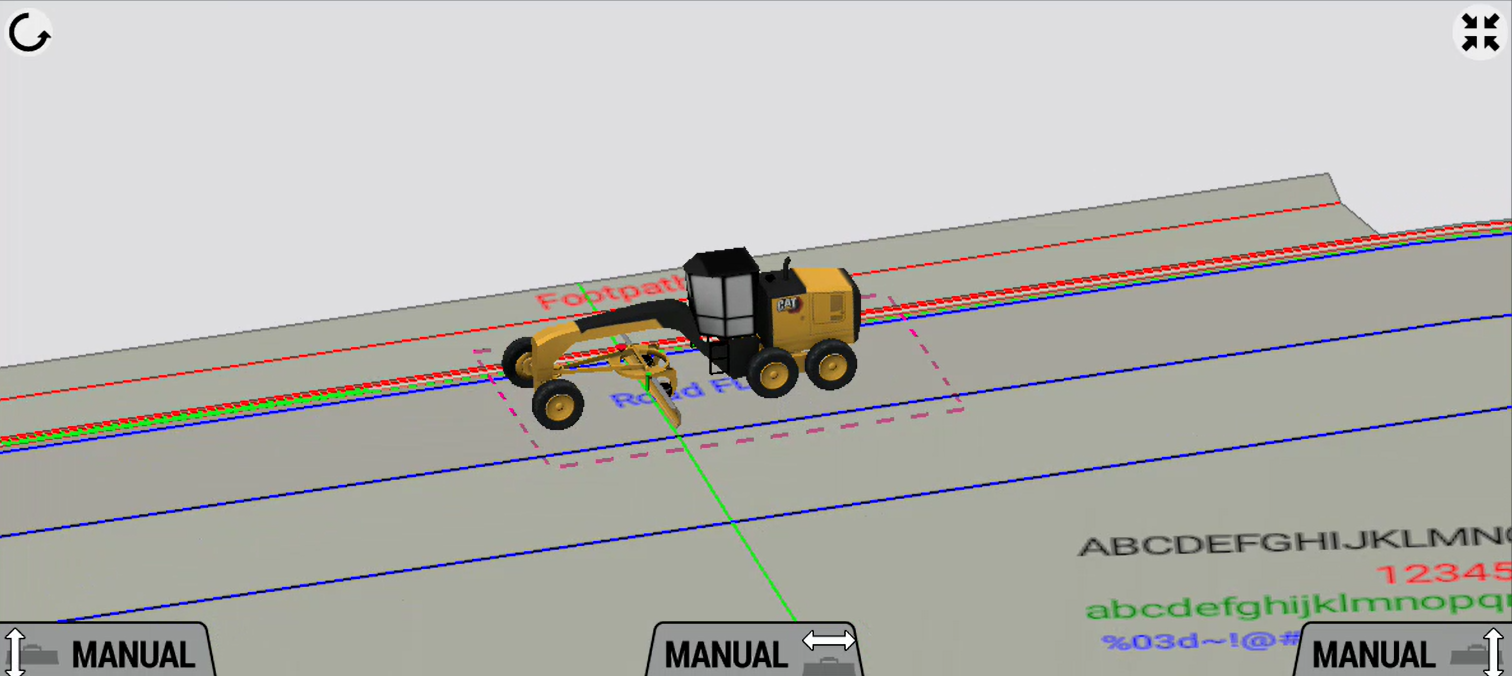
-
Two view
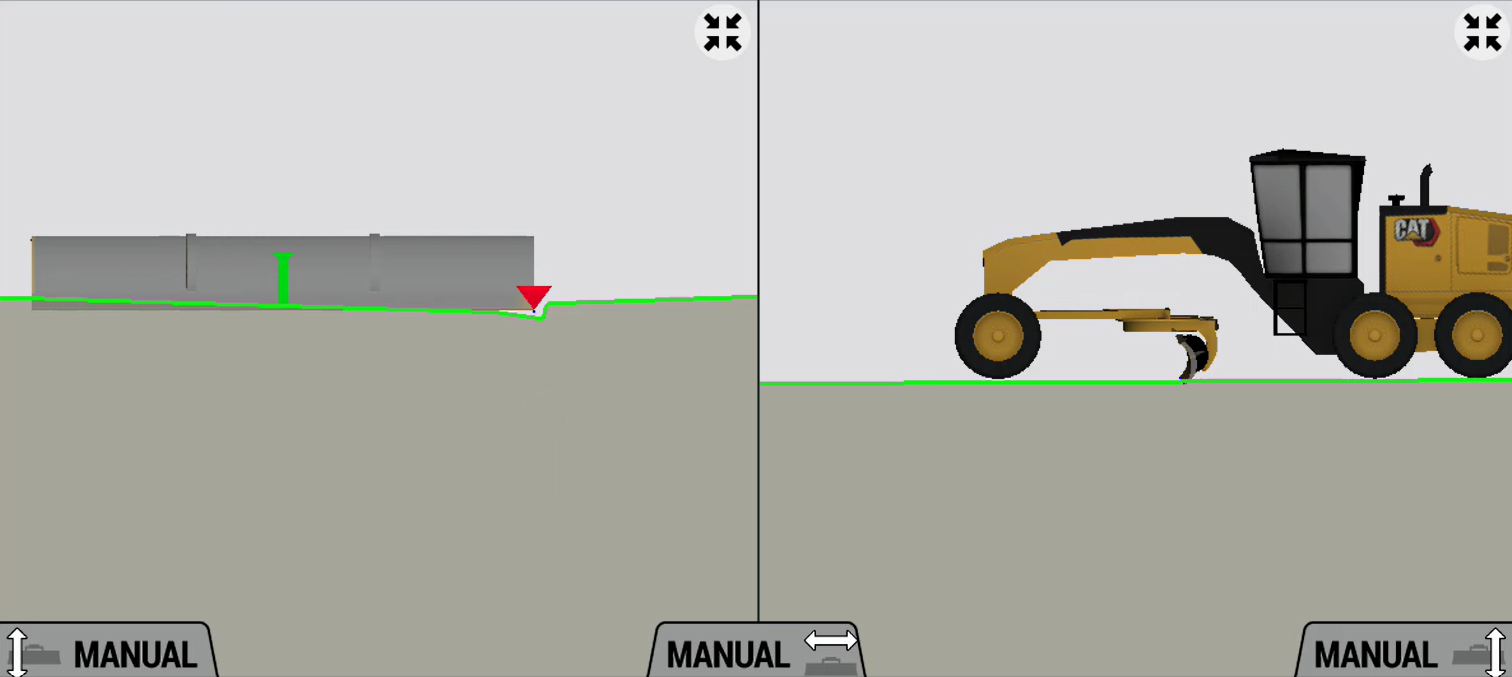
-
Three view
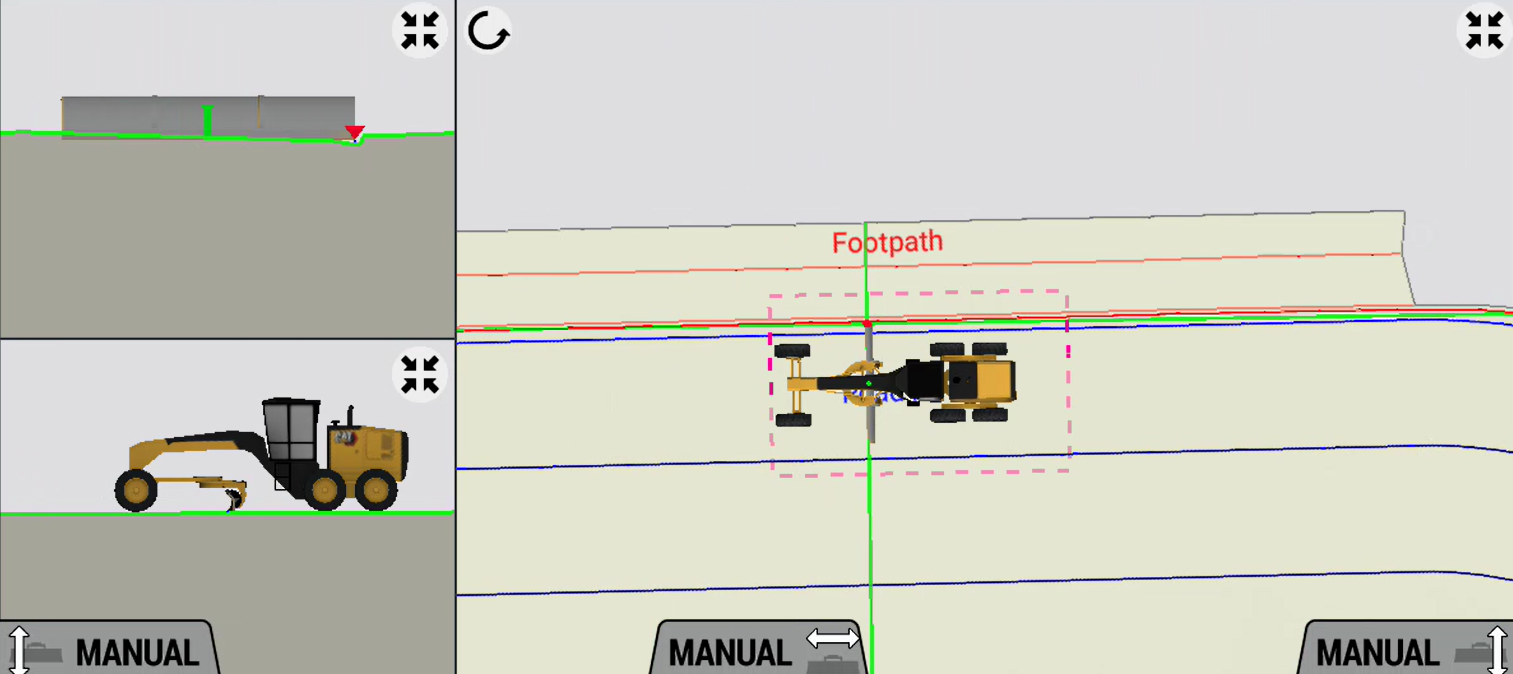
You can choose what you see in each view.
EXAMPLE – You might want a Cross Section view on half the screen to check how close you are to grade. And you might like a Plan view on the other half to see how close you are to the lines you're working to.
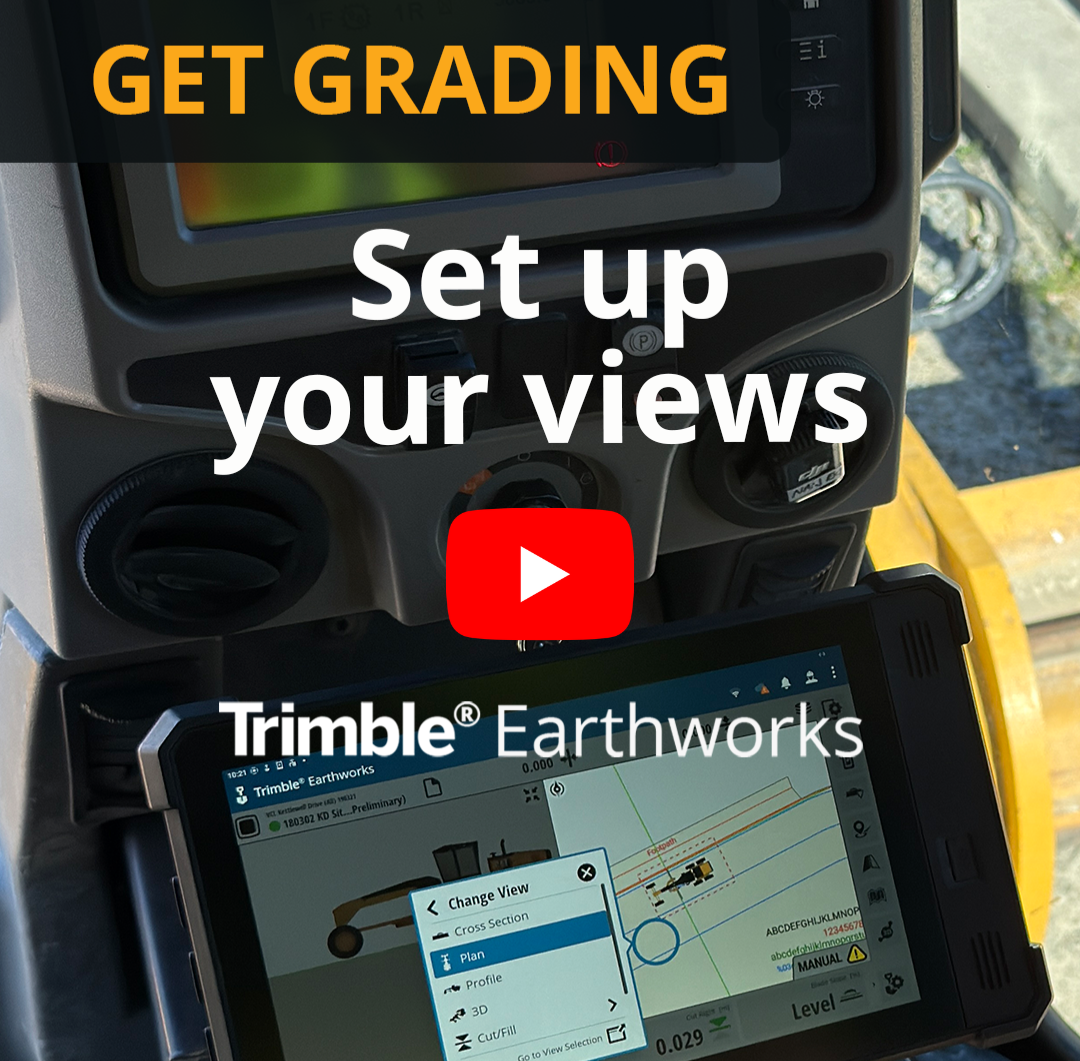
Watch the video
Watch an expert grader operator set up the views.
Step by step
-
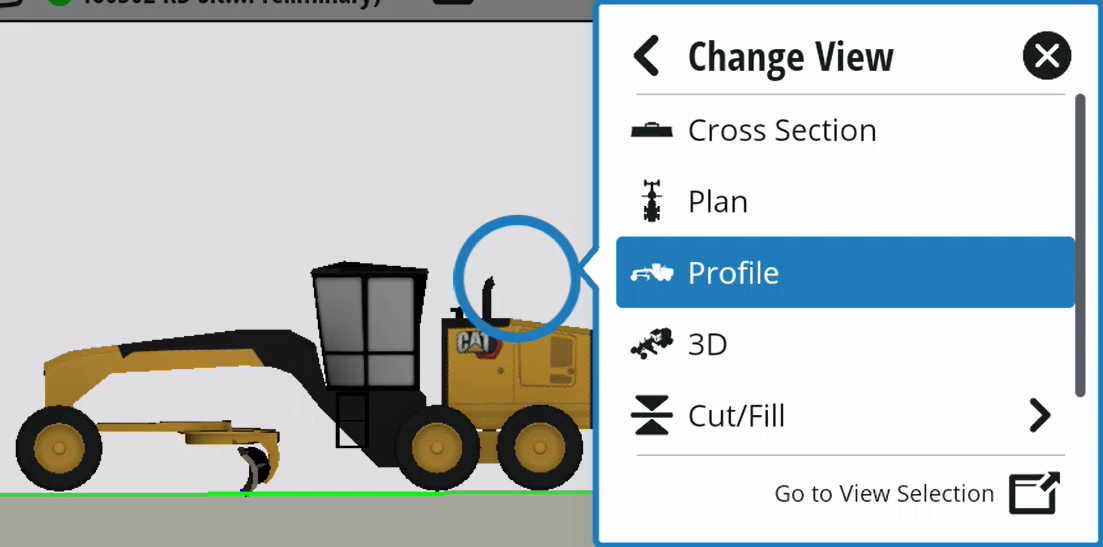
To choose what you see in a viewing pane, tap and hold anywhere inside the pane > Select Change View > Choose the view you want.
-
To choose what you see in each view set:
-
Select the system settings
 icon.
icon. -
Swipe down and tap Layout.
-
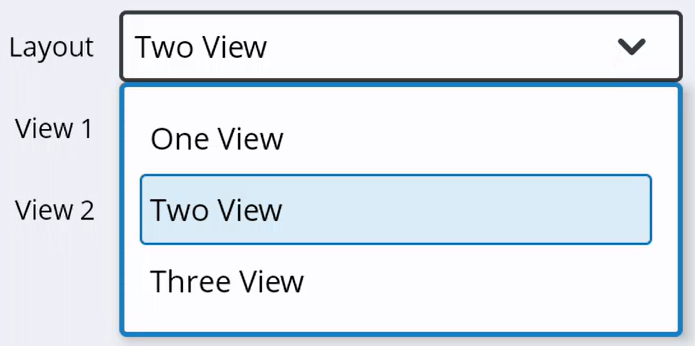
Select One View, Two View, or Three View.
-
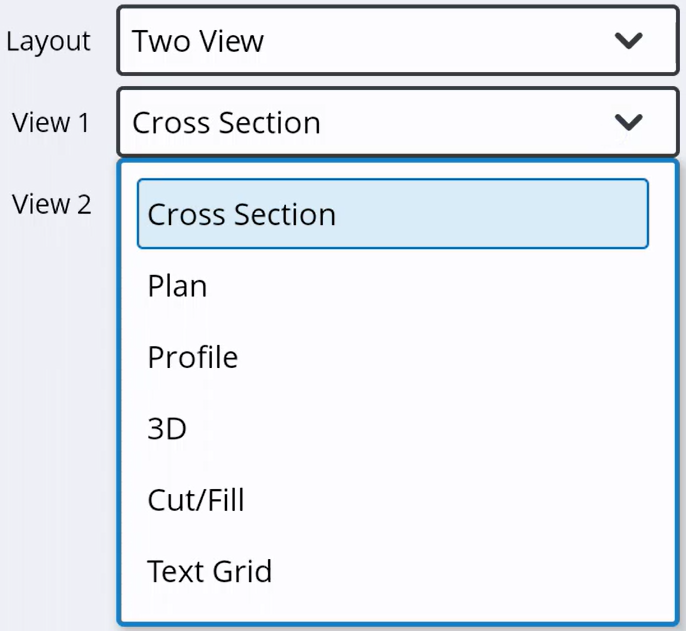
Specify what you want to see in each view.
-
Tap Apply.
-
-
Use one finger to move an image around within a viewing pane.
-
Use two fingers to swipe between the sets of views.
